How to Use Messaging on BanglaTech
Send direct messages to other users — teachers, students, or friends on the platform.
Overview
BanglaTech has built-in direct and group messaging. You can chat 1-on-1 with any user on the platform — teachers, students, friends — or create named group chats for study groups, project teams, or class discussions. Messages appear in two places:
- /messages — a full-page inbox with conversation list + chat area side by side
- Floating messenger — a small chat widget at the bottom-right corner of every page, so you can message without leaving what you're doing
Part 1 — Open the Messages Page
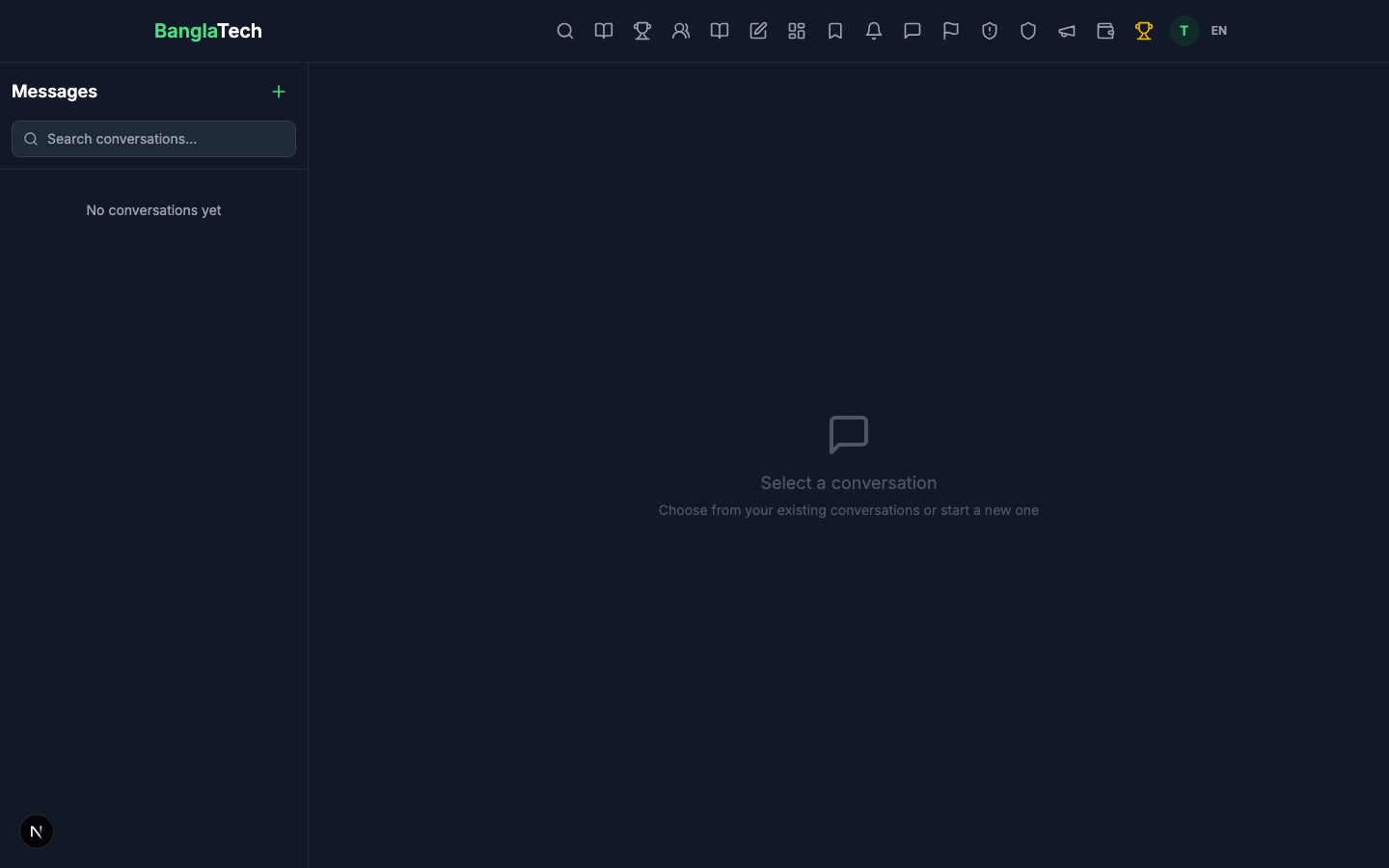
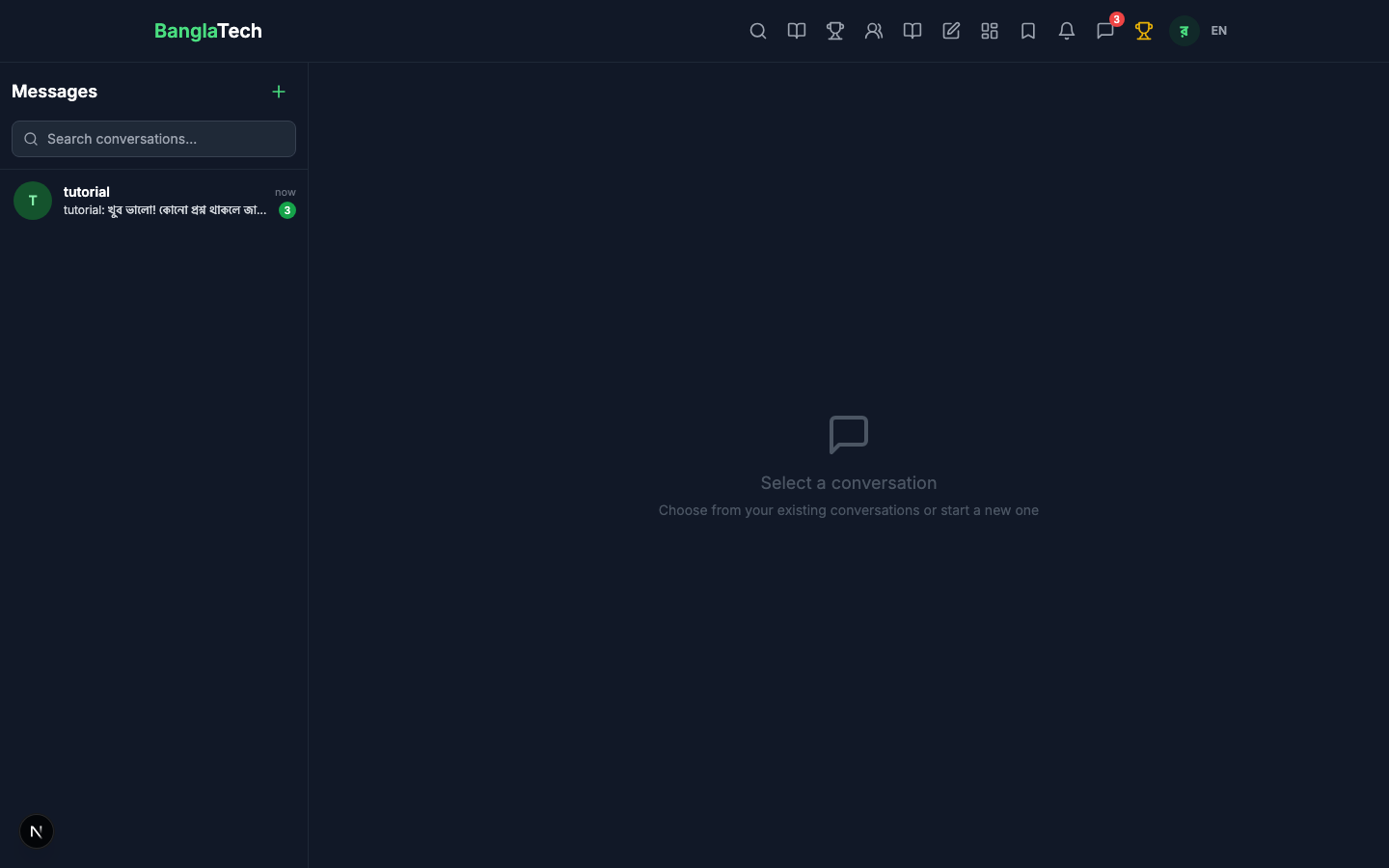
Click the chat icon in the top navigation bar, or go to /messages directly. If you haven't started any conversations yet, you'll see an empty state.
Part 2 — Direct Messages (1-on-1)
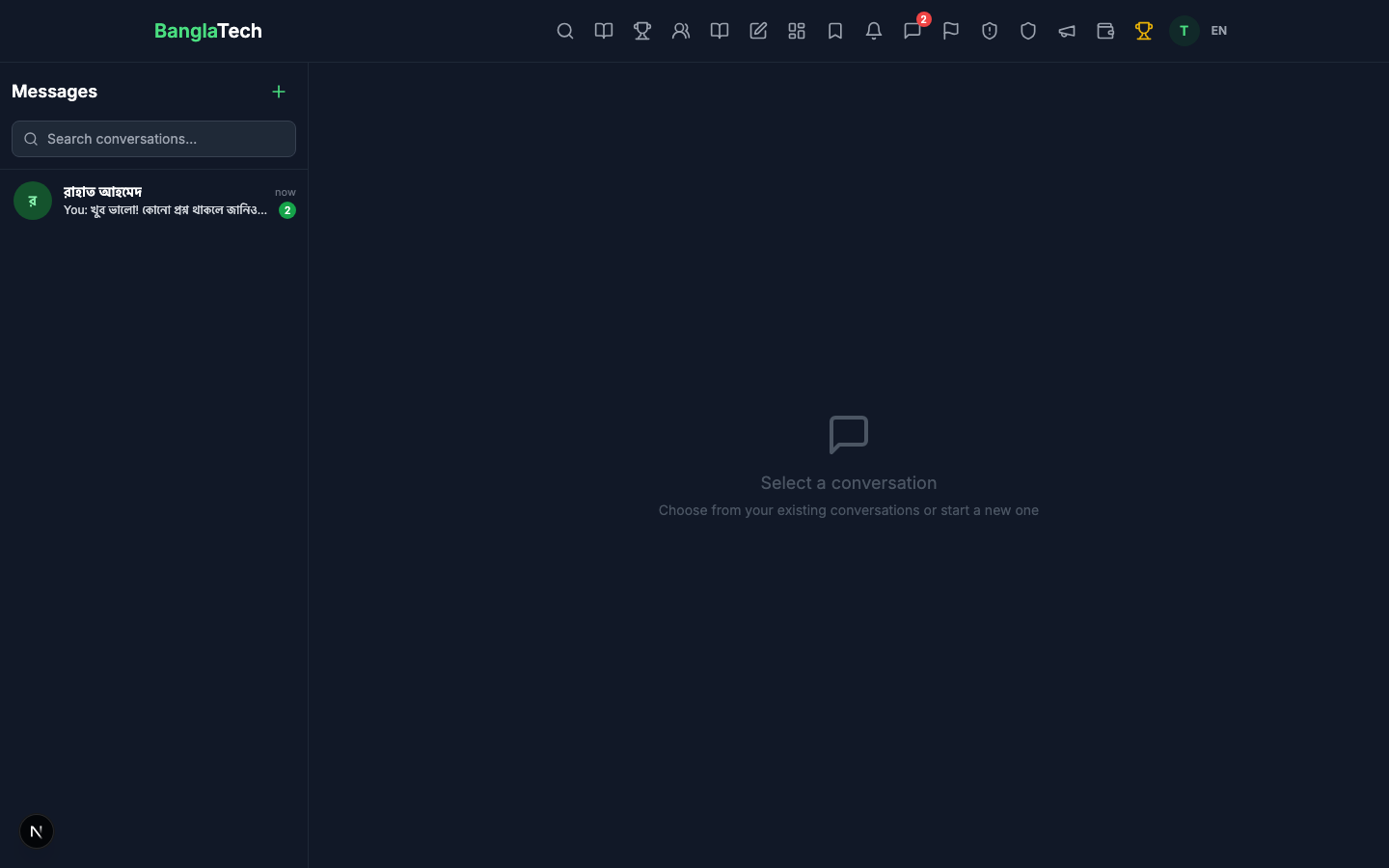
Start a new conversation by clicking the + button next to "Messages". Search for a user by name or username, select them, and your conversation opens immediately.
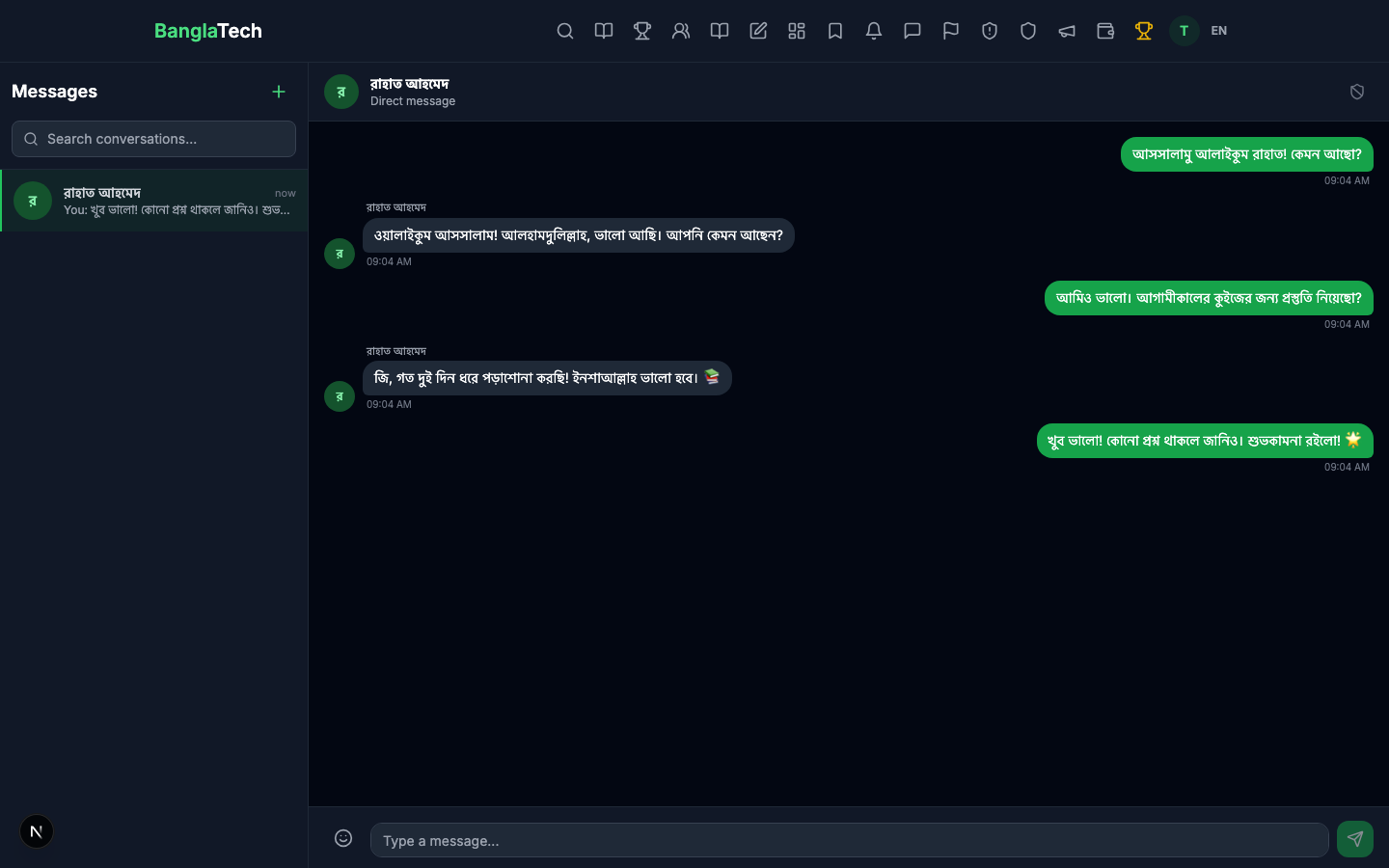
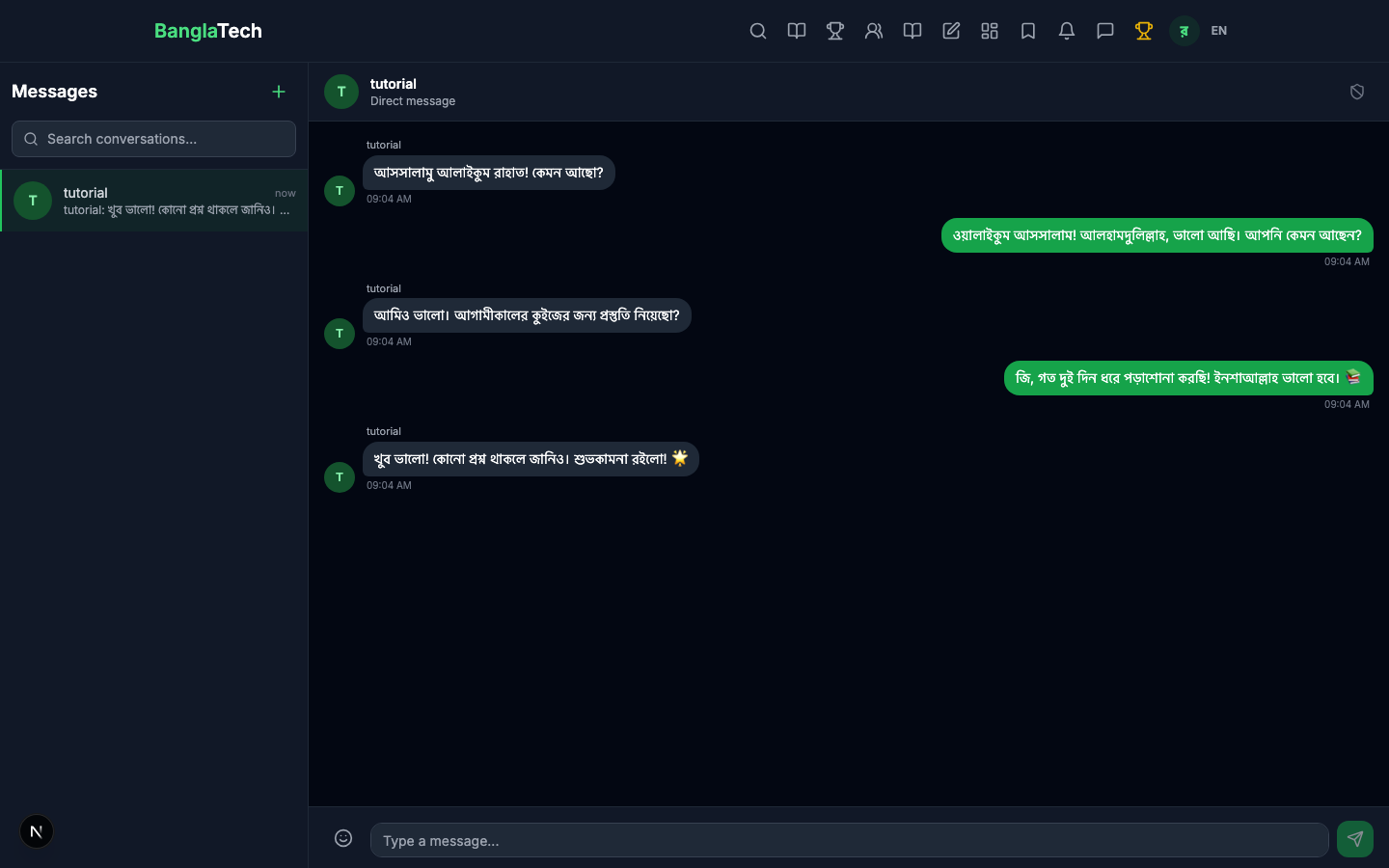
Once you have an active conversation, the inbox shows your conversation list on the left and the selected chat on the right:
The chat area shows messages in bubbles — your messages in green (right), the other person's messages in dark (left). Type in the input at the bottom and press Enter or click Send.
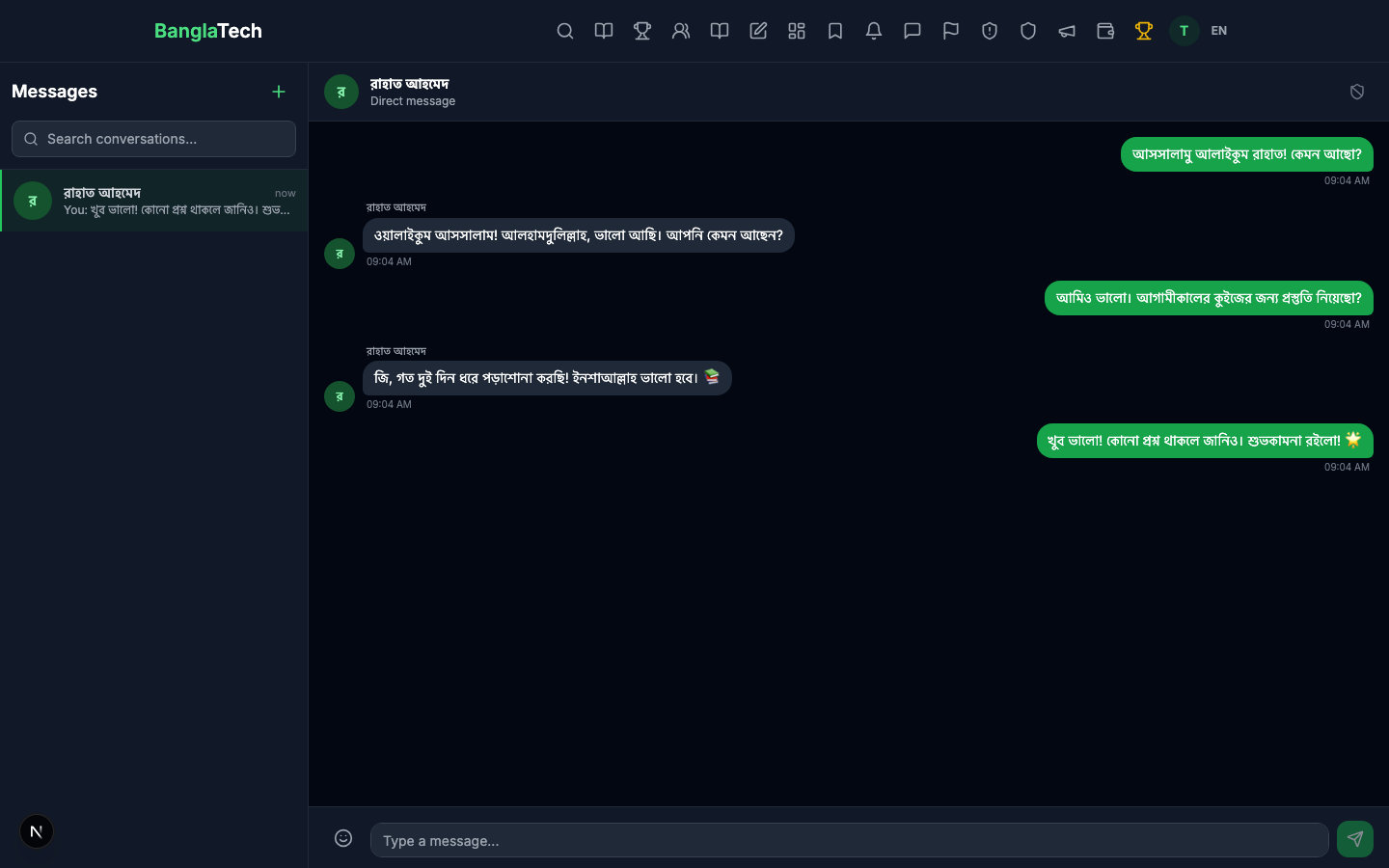
Student's view
The other person sees the same conversation from their side — same messages, mirrored bubble colors.
Part 3 — Group Chats
Create a group chat by clicking + → toggle to "Group" → search and add multiple members → give the group a name. Group chats work exactly like direct messages, but with 3+ people.
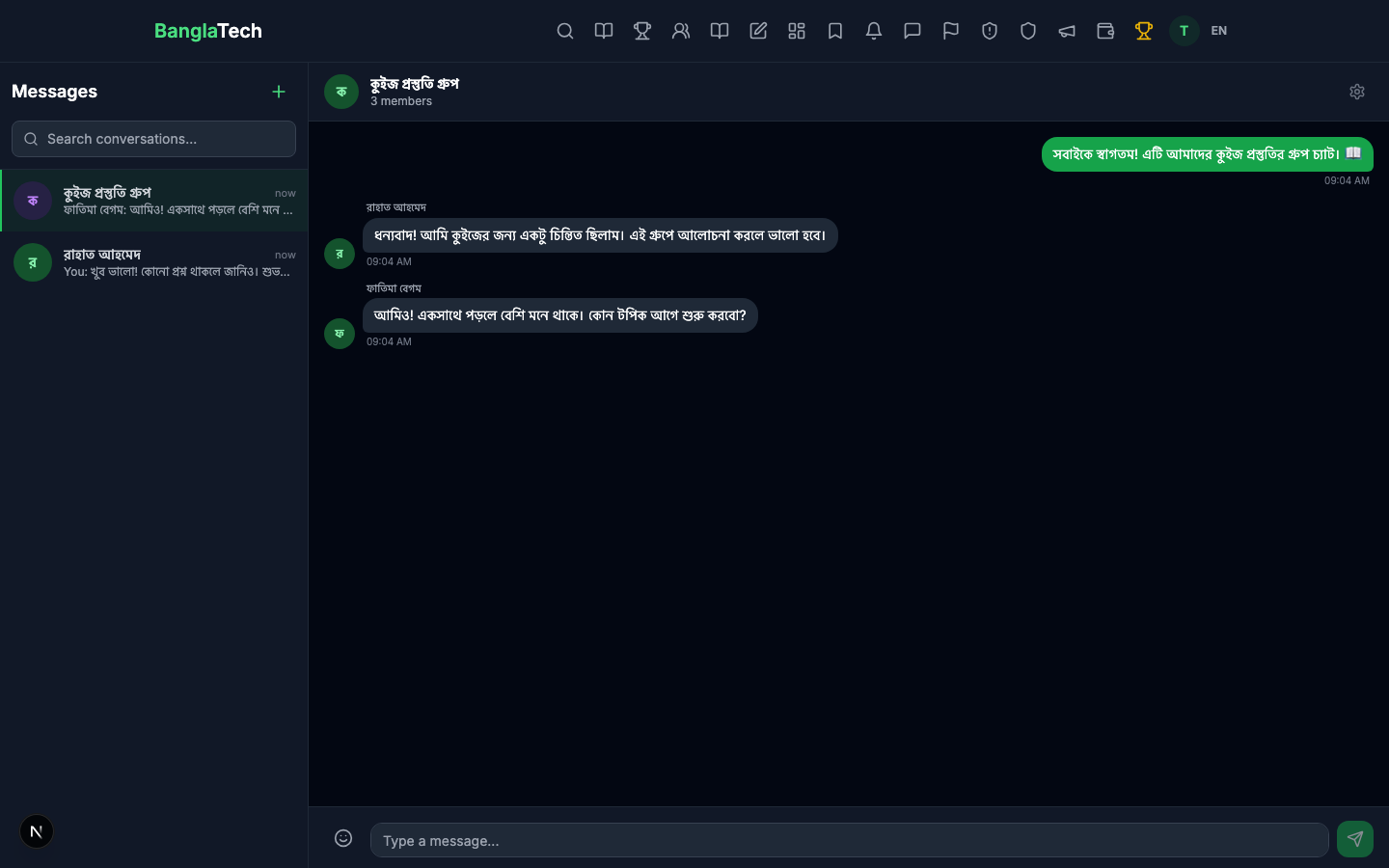
Group chats support renaming (click the group name at the top), adding new members, and show each sender's name + avatar above their messages. All members get real-time message notifications via the floating messenger.
Part 4 — Floating Messenger
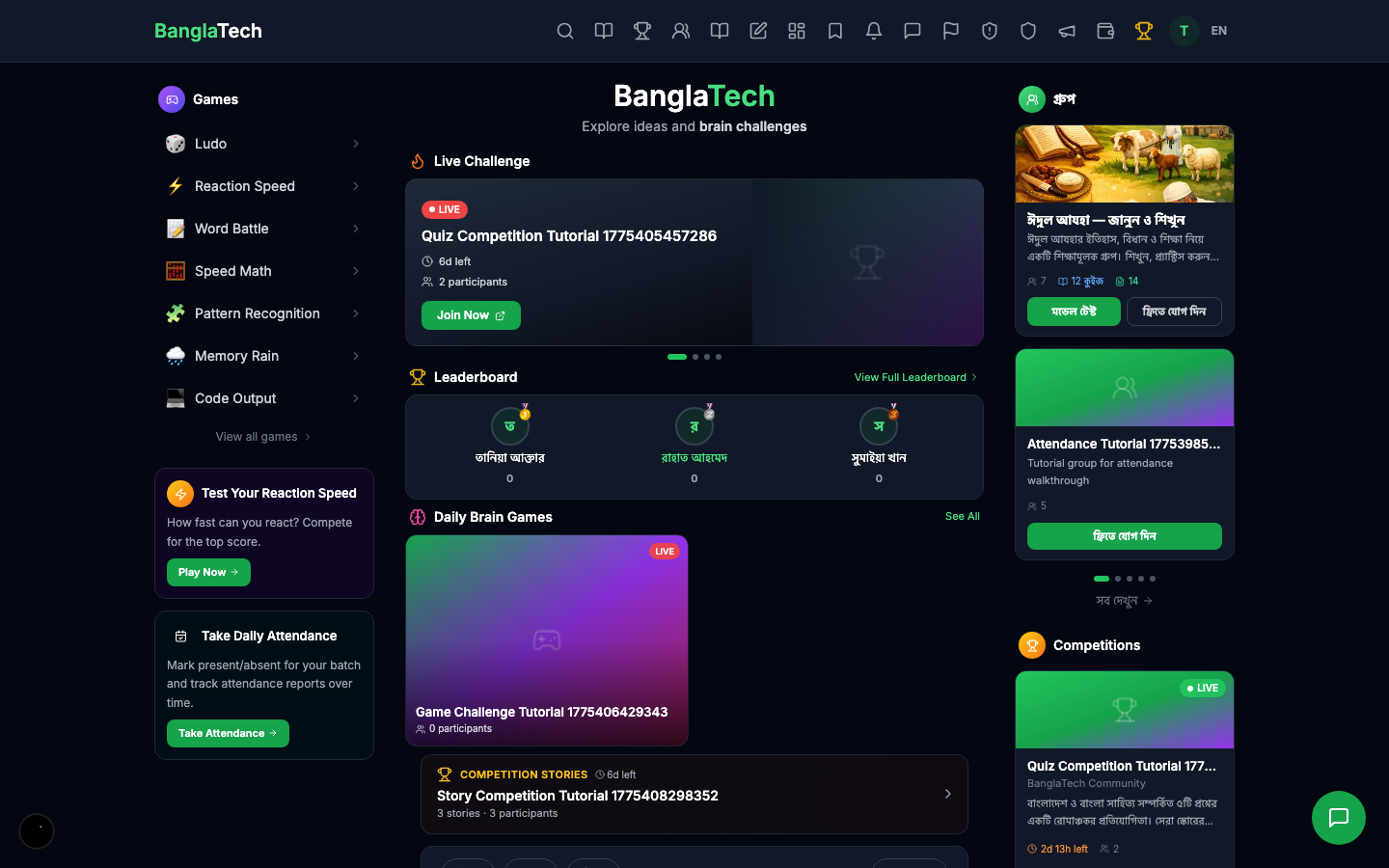
On every page of BanglaTech, there's a small chat icon at the bottom-right corner. Click it to open the floating messenger — a compact version of the full inbox that overlays on top of whatever you're doing.
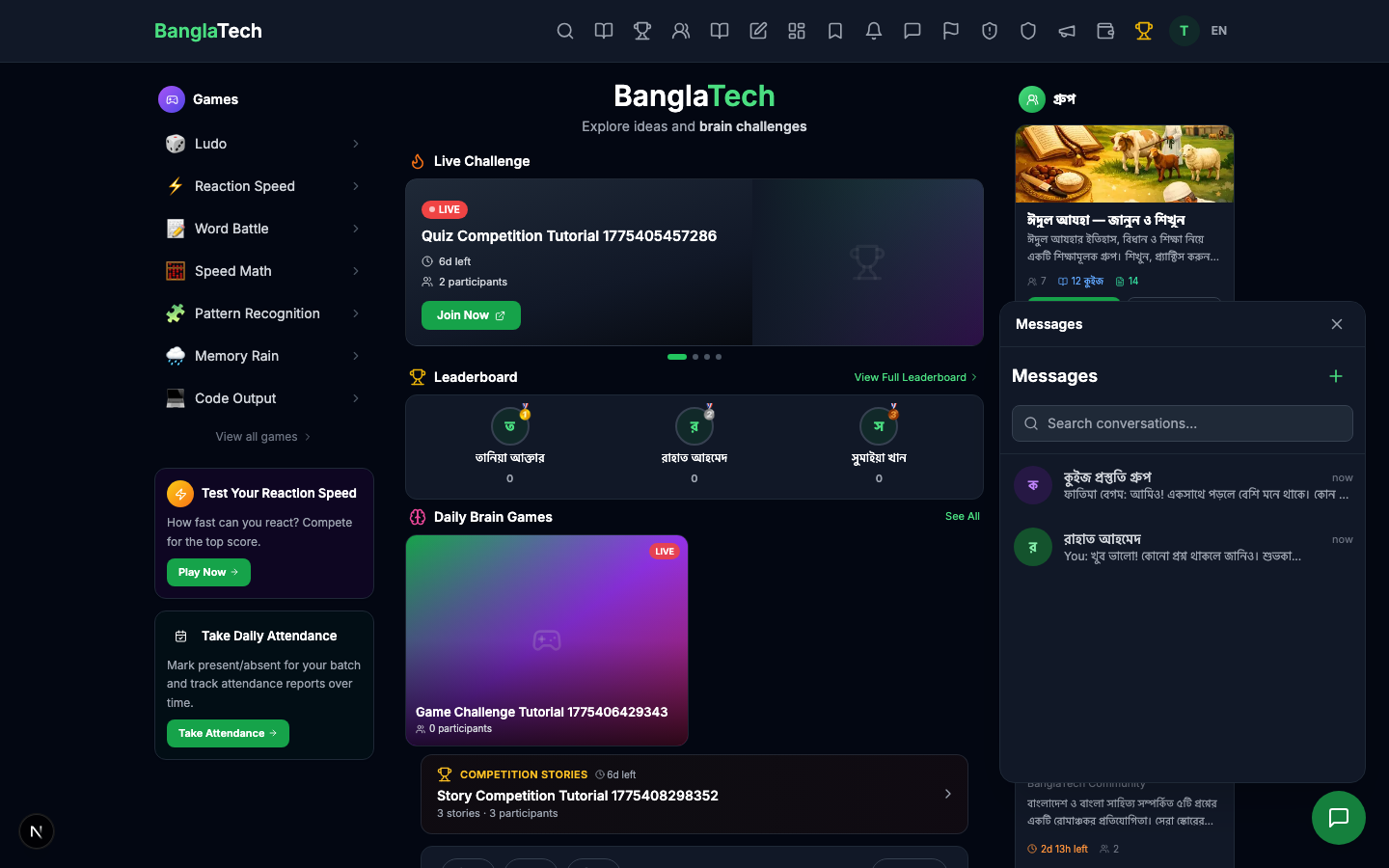
Click any conversation in the floating list to open the chat inline — read and reply without navigating away from the current page.
Summary
- ✅ Direct 1-on-1 messaging with any registered user
- ✅ Named group chats with 3+ members
- ✅ Full-page inbox at /messages with conversation list + chat area
- ✅ Floating messenger widget on every page — no context switching
- ✅ Real-time delivery via WebSocket (no page refresh needed)
- ✅ Message reactions, read receipts, and typing indicators
- ✅ Unread count badge in the navigation bar