How to Run Paid Competitions with bKash Entry Fees
Charge an entry fee for your competition via bKash, review transaction IDs, and approve or reject payments before students can participate.
Overview
BanglaTech competitions can charge an entry fee via bKash. Students pay to the hosting organization's bKash number, submit the transaction ID + their mobile number, and wait for admin approval. Only approved participants can take the quiz or submit entries. This enables funded writing contests, revenue-sharing quiz events, and professional tournaments — all without third-party payment processors.
This tutorial demonstrates a quiz competition with a ৳৫০ entry fee. Two students join: one submits a valid transaction ID and gets approved; the other submits a bad ID and gets rejected with a reason.
Entry fees work for quiz competitions, story competitions, and game challenges alike. The flow is identical — only the "what happens after payment" changes based on the type.
Part 1 — Admin: Configure Payment
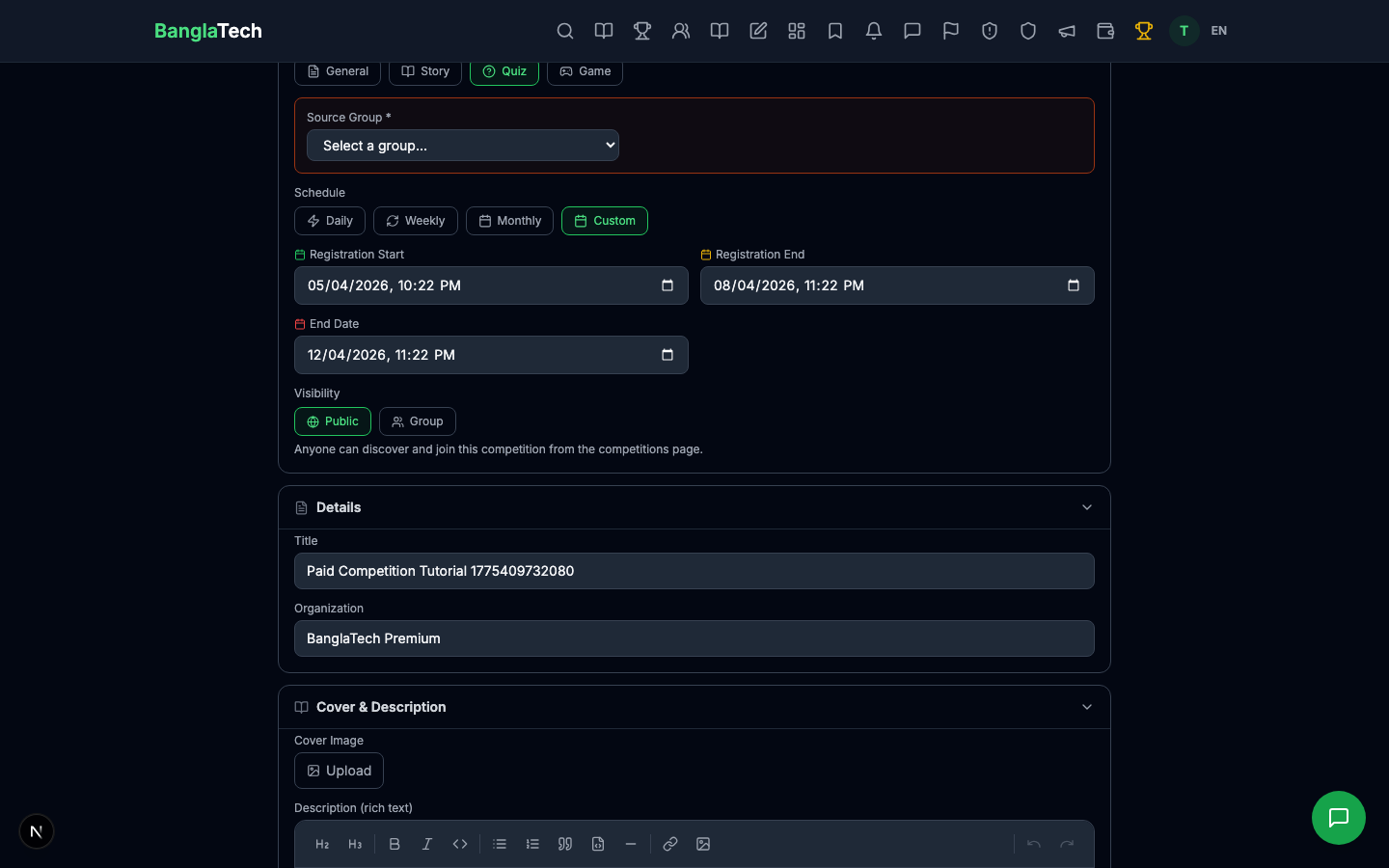
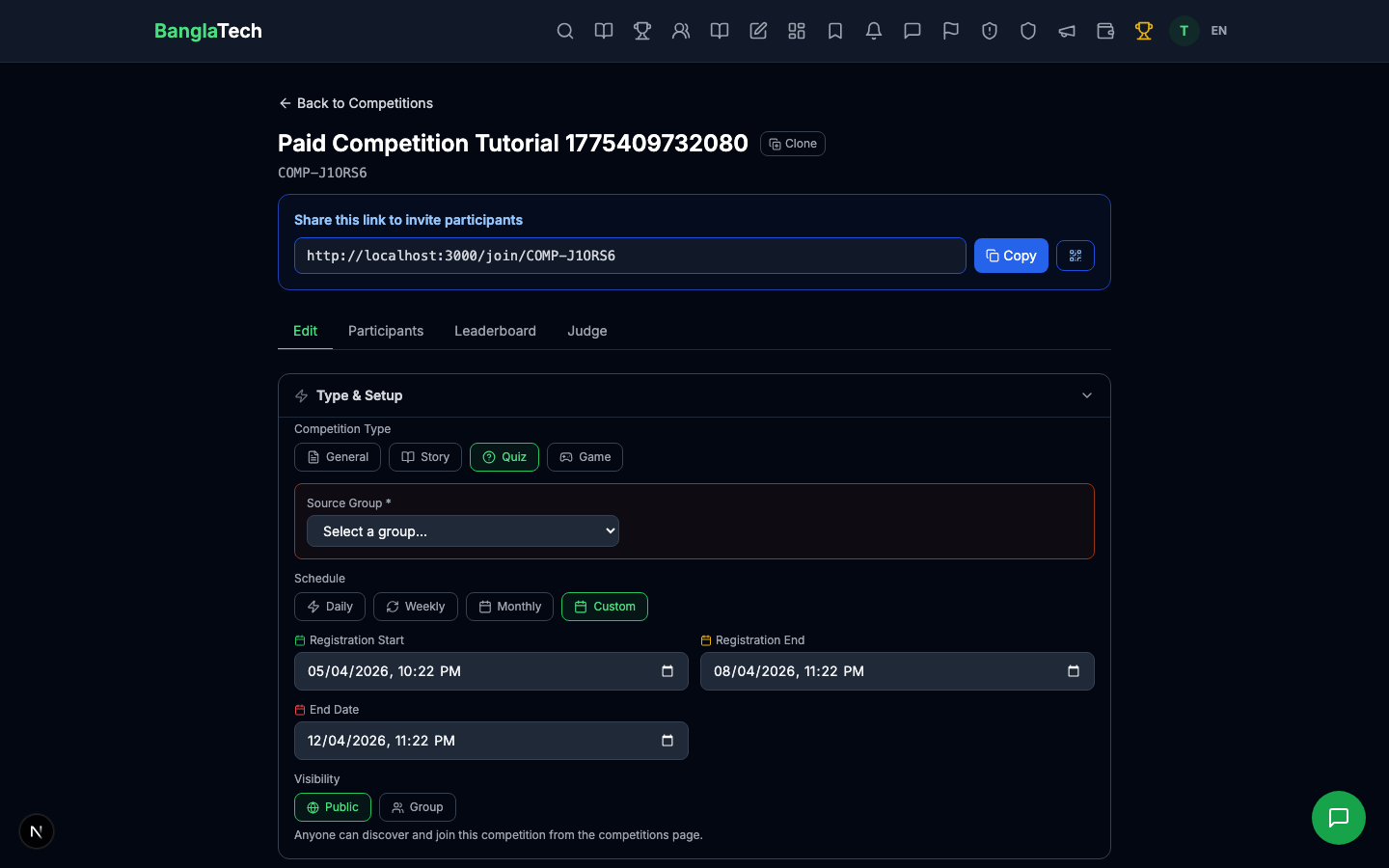
From /admin/competitions, click New Competition.
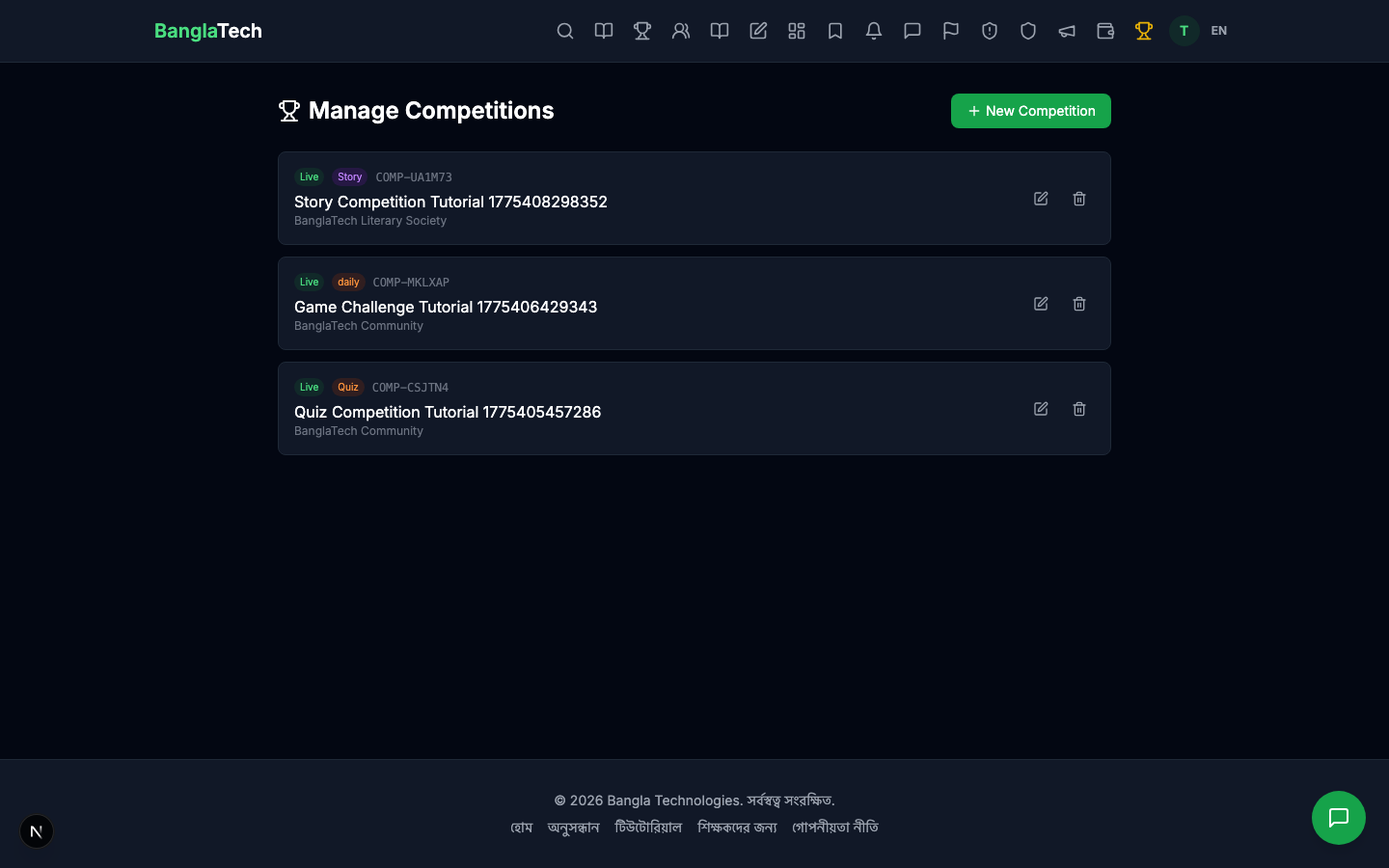
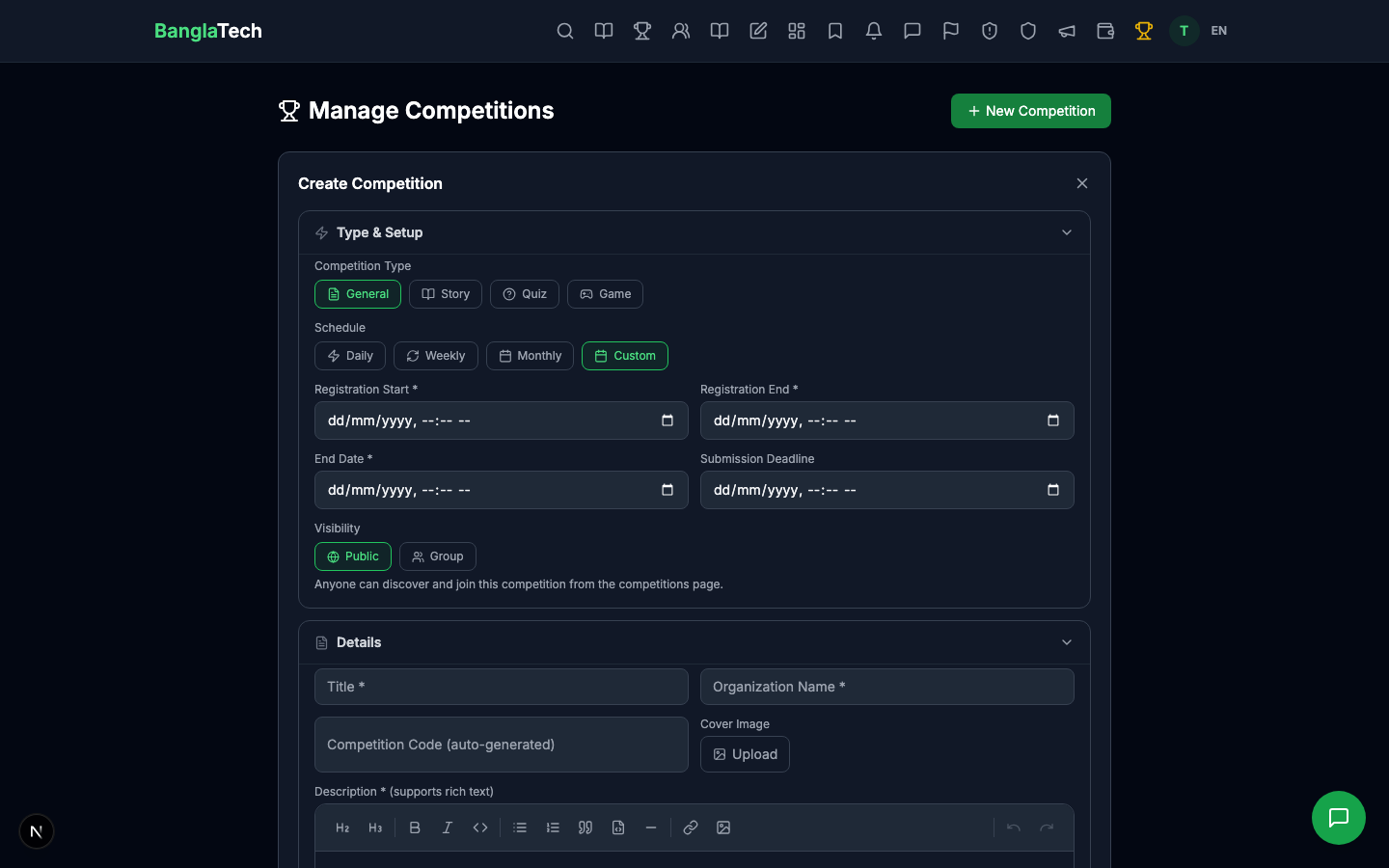
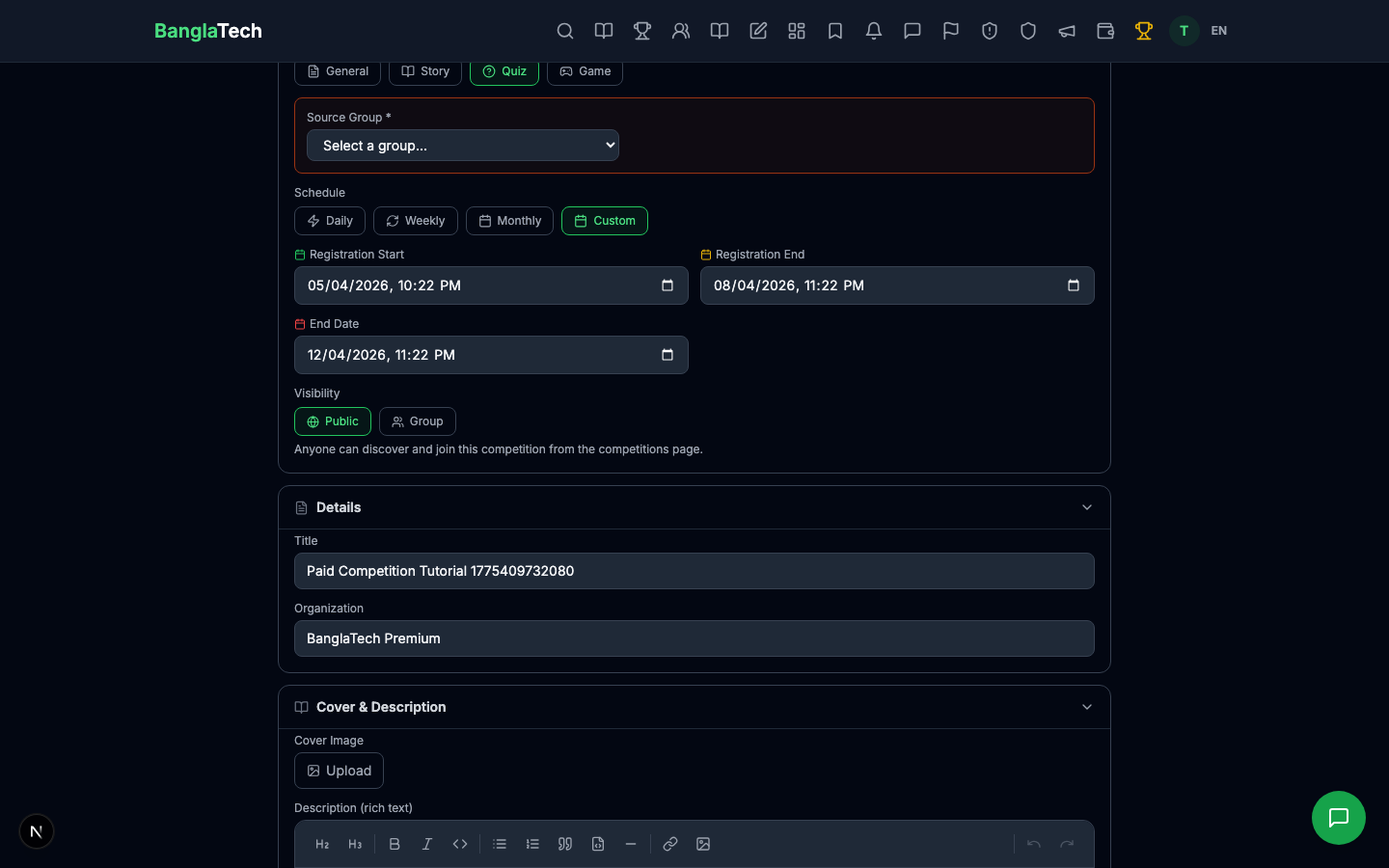
Scroll to the Payment & Entry Fee section and fill in the 3 key fields:
- Entry Fee — amount in BDT (e.g.
50). Setting this to 0 or leaving empty makes the competition free. - bKash Payment Number — the 11-digit bKash number where students will send money (your organization's merchant or personal number).
- Payment Instructions — a short text shown to students telling them exactly how to pay. Example: "Send ৳৫০ to the bKash number above via Send Money. Then enter the Transaction ID and your bKash mobile number below."
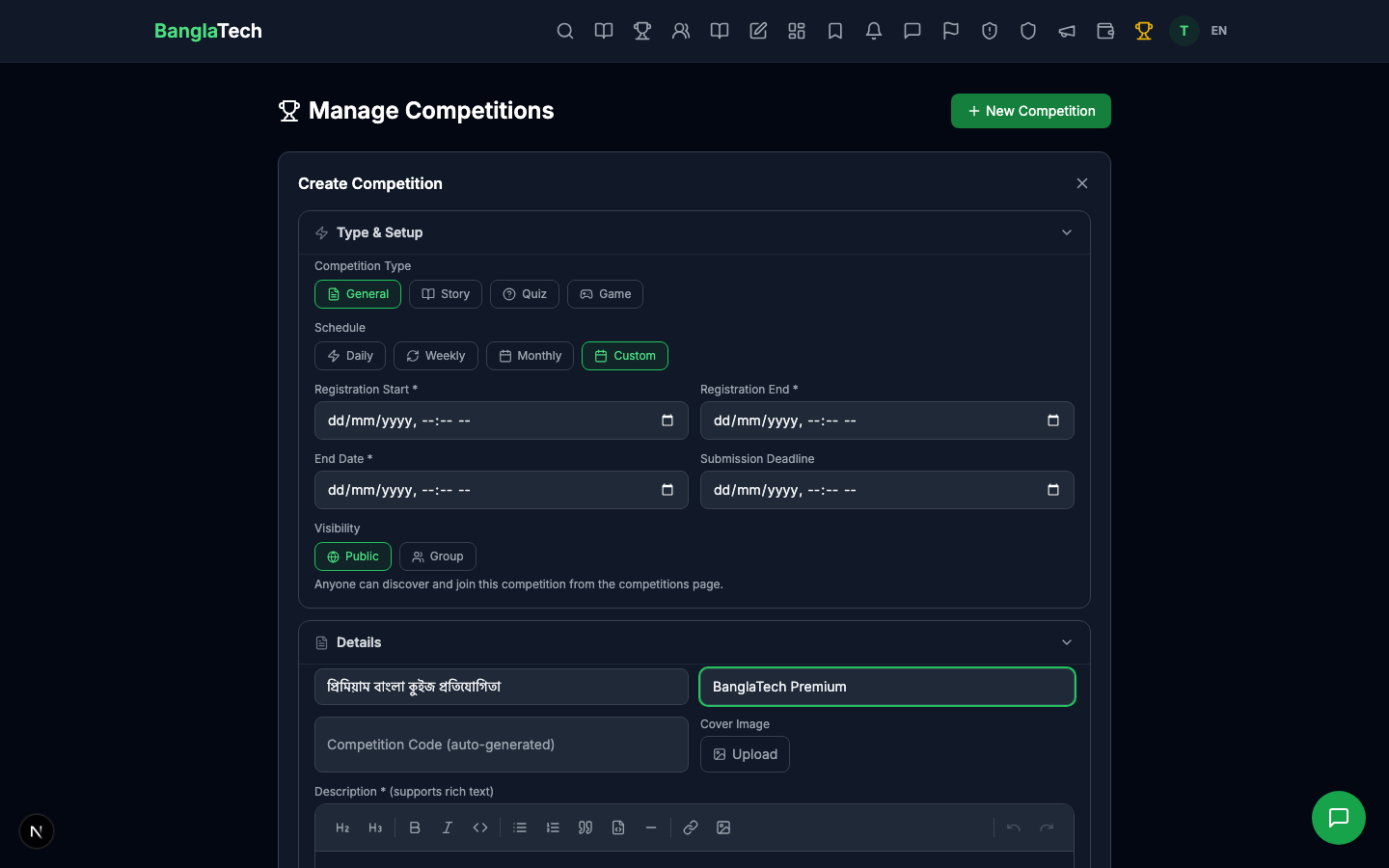
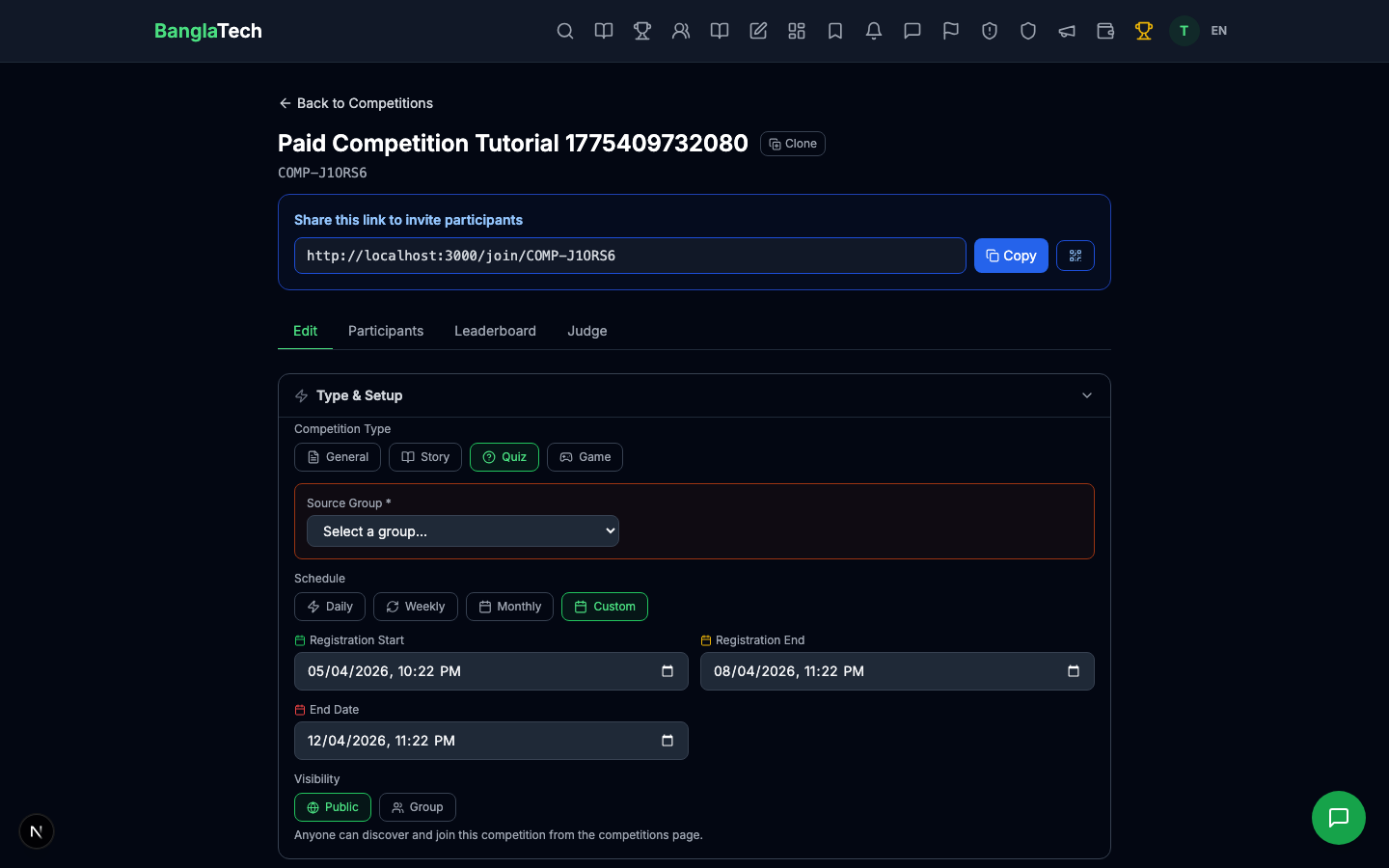
Create the competition and flip it to Live. Students can now see it.
Part 2 — Student: Discover and Pay
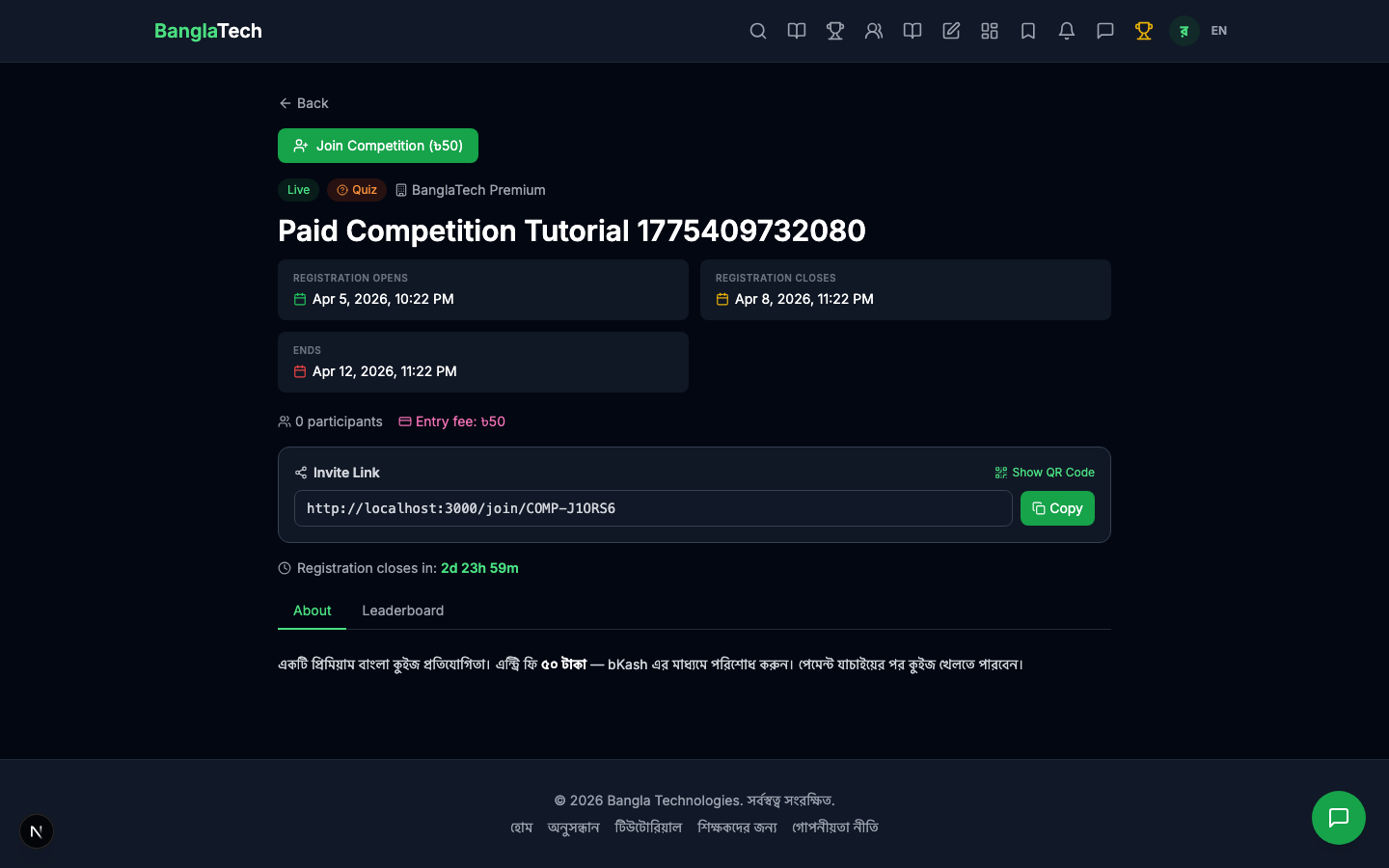
A student opens the competition page and sees the Entry Fee: ৳৫০ indicator next to participant count. The "Join Competition" button is visible but clicking it opens the payment modal instead of instantly joining.
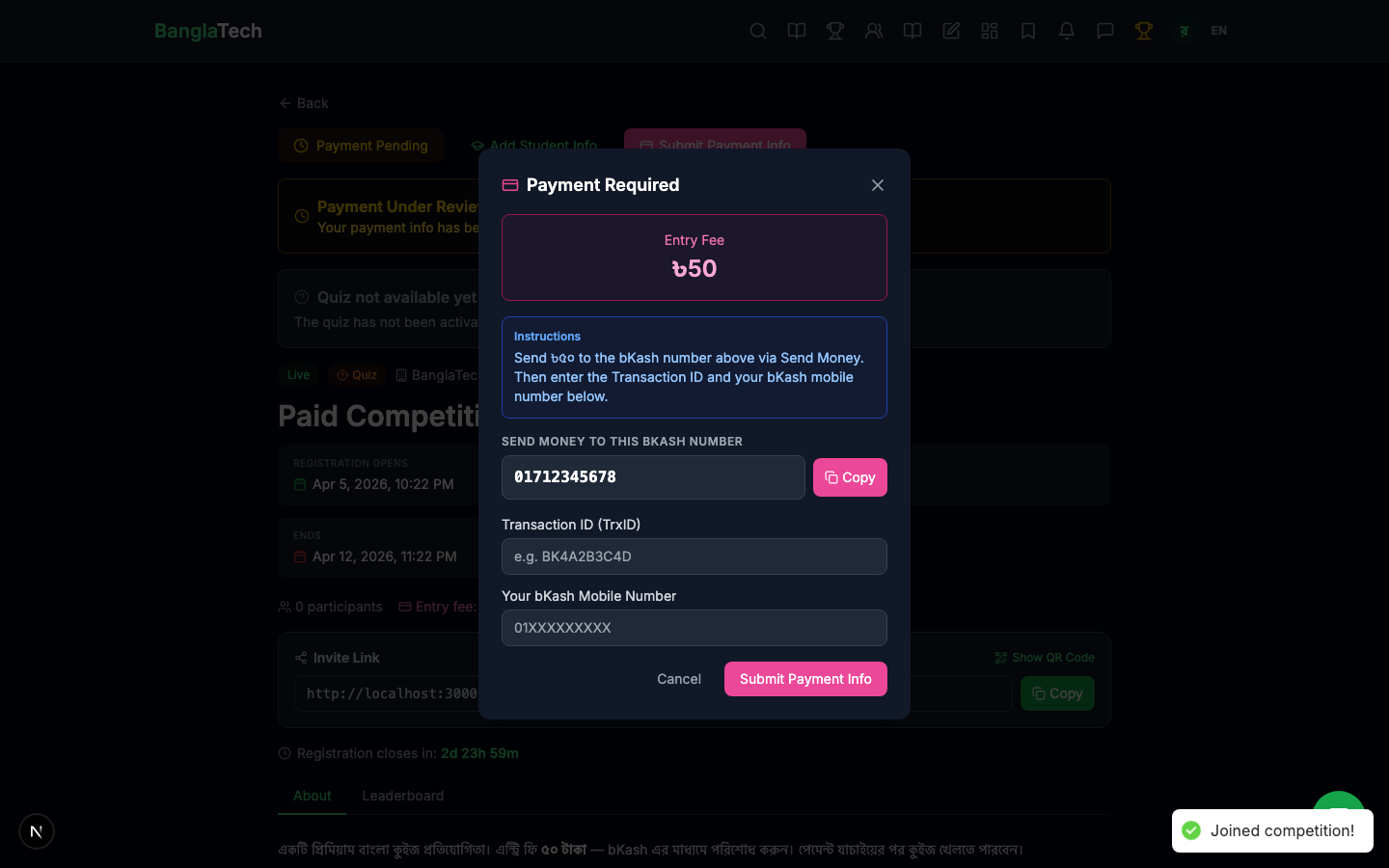
The payment modal shows the bKash number and the instruction text the admin wrote. The student sends money via bKash and then enters their Transaction ID and the bKash mobile number they paid from.
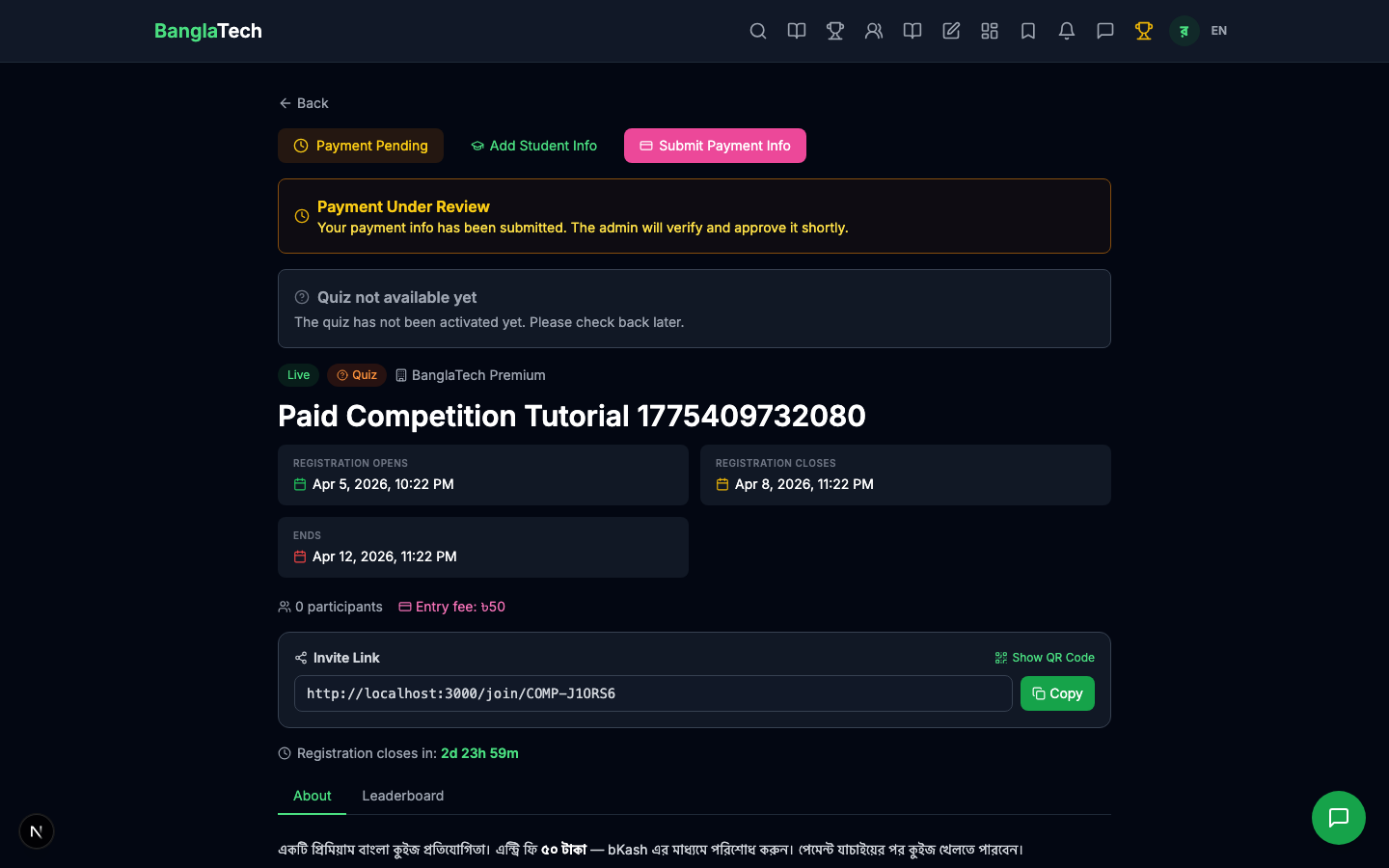
After submitting, the participant status becomes Pending Review. They can see the competition but can't take the quiz yet.
Enter the transaction ID exactly as it appears in the bKash SMS confirmation. Typos will cause rejection and you'll need to resubmit. Also use the same mobile number you paid from — admins cross-check this against their bKash records.
Part 3 — Admin: Review Pending Payments
In the admin panel, the competition detail page shows all participants with their payment status and submitted transaction info. Pending payments appear in an orange/yellow state.
For each pending payment, the admin has two actions:
- Approve Payment — unlocks the student; they can now participate
- Reject Payment — opens a text box for the rejection reason. The student sees the reason on their competition page and can resubmit.
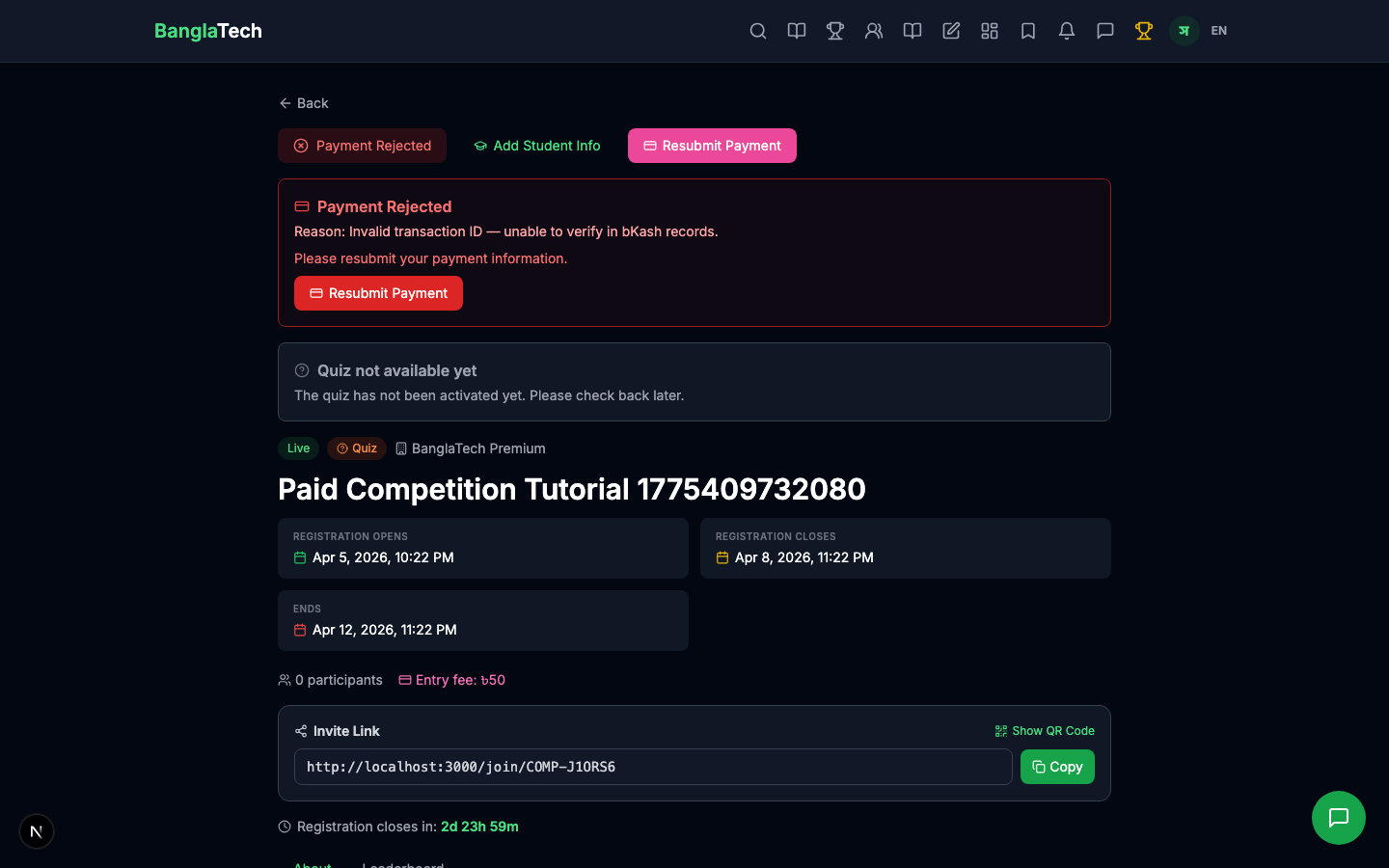
In this tutorial, Rahat's payment is approved and Sumaiya's is rejected with reason "Invalid transaction ID — unable to verify in bKash records."
Part 4 — Student Outcomes
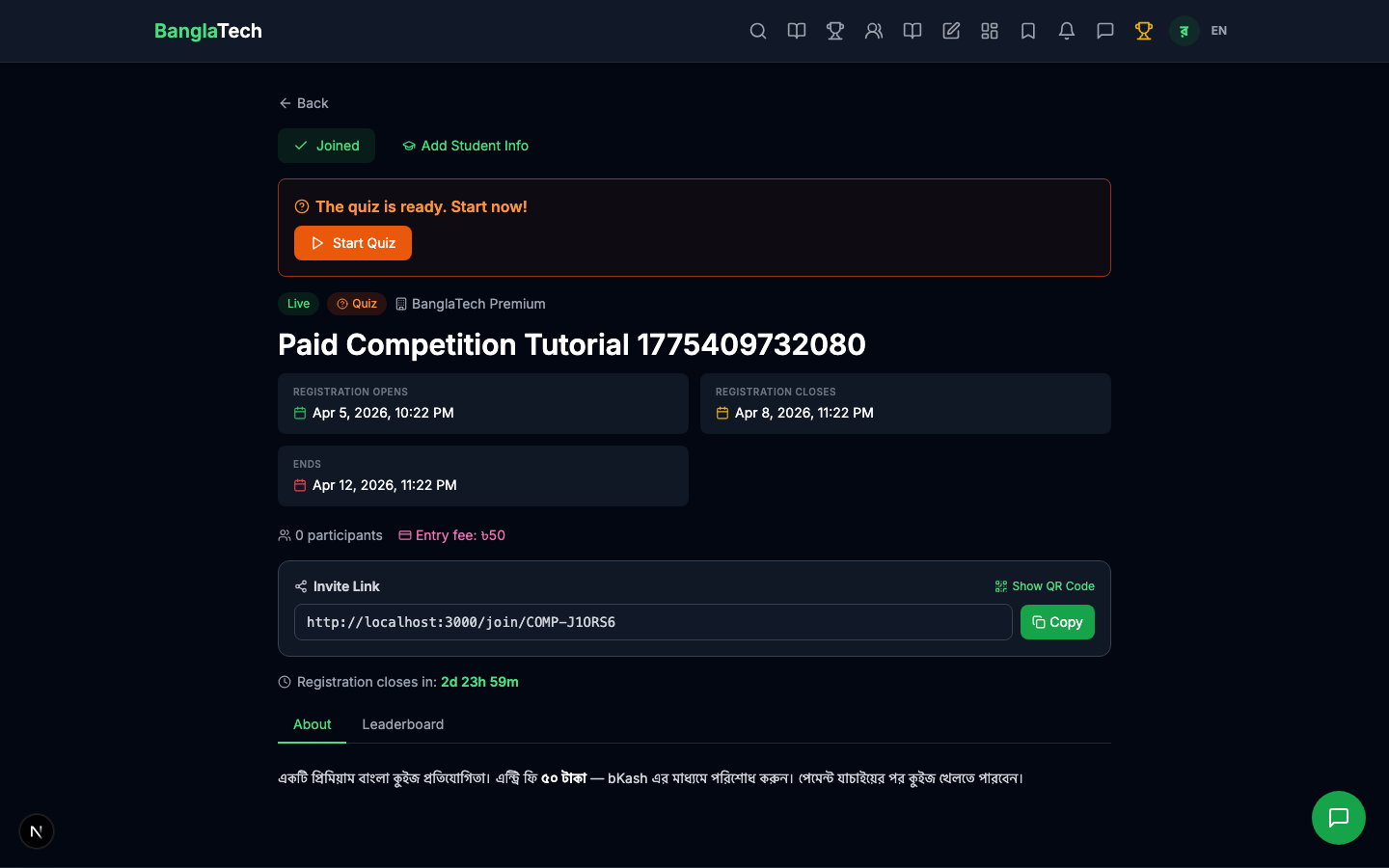
✅ Rahat — Approved
Rahat sees the green "Joined ✓" badge and a "Start Quiz" button. He can now play just like in any regular (free) quiz competition.
❌ Sumaiya — Rejected
Sumaiya sees a red "Payment Rejected" banner with the admin's rejection reason clearly displayed. A "Resubmit Payment" button lets her try again with a corrected transaction ID.
Part 5 — Leaderboard Shows Only Paid Participants
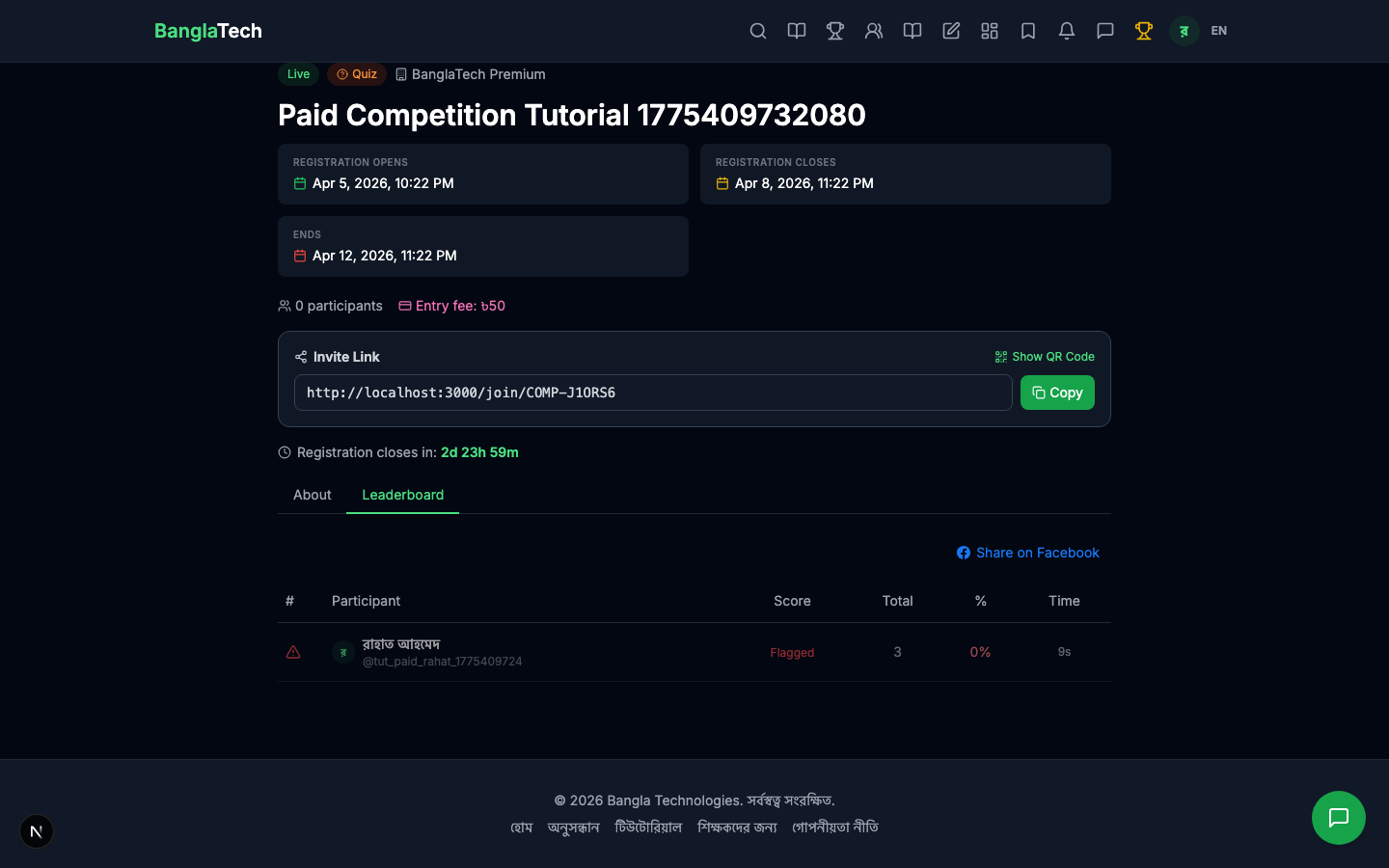
After Rahat takes the quiz, the leaderboard shows him — and only participants with approved payment. Rejected and pending participants don't appear.
Summary
- ✅ Set an entry fee in BDT with a bKash number and clear instructions
- ✅ Students submit transaction ID + mobile; admin verifies manually
- ✅ Approved students participate normally; rejected students see the reason and can resubmit
- ✅ Leaderboard only shows approved participants — keeps the contest clean
- ✅ No third-party processor needed — works for any Bangladesh-based organization with a bKash account
For large competitions (100+ participants), consider asking students to include their BanglaTech username in the bKash reference field. This makes cross-checking payments in your bKash merchant dashboard much faster than searching by transaction ID one at a time.